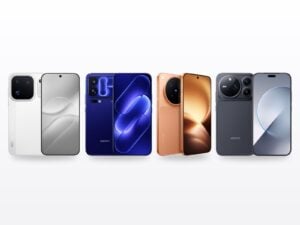

Taking a brand-new smartphone out of its box is always a pleasure. Yet once the initial Google setup is done, the device is far from optimised. To post flattering battery figures on their spec sheets, manufacturers ship their interfaces with very conservative factory settings: capped screen refresh rate, fast charging disabled for safety, or messaging apps aggressively shut down in the background. Whether you are running HyperOS, OriginOS, ColorOS or MagicOS, here are the 10 essential steps to unlock your phone and fit it to how you actually use it.
1. Check and unlock full fast-charging power
Many people assume that plugging their phone into a powerful charger is enough to reach the advertised speed. It is not: on many interfaces, full-power charging (67W, 80W, 90W or 120W) is capped by default to limit heat, or hidden behind a software option.
Make sure full-speed mode is actually enabled for your brand:
- Xiaomi / Redmi / Poco (HyperOS): go to Settings > Battery > Additional features and turn on Boost charging speed. Without it, a 120W charger is held back to around 60W.
- Vivo (OriginOS or Funtouch OS depending on the model): go to Settings > Battery and check that Super Flash Charge (or FlashCharge) is enabled. On OriginOS, a dedicated switch also lets you trade the factory gentle-charging mode for maximum speed.
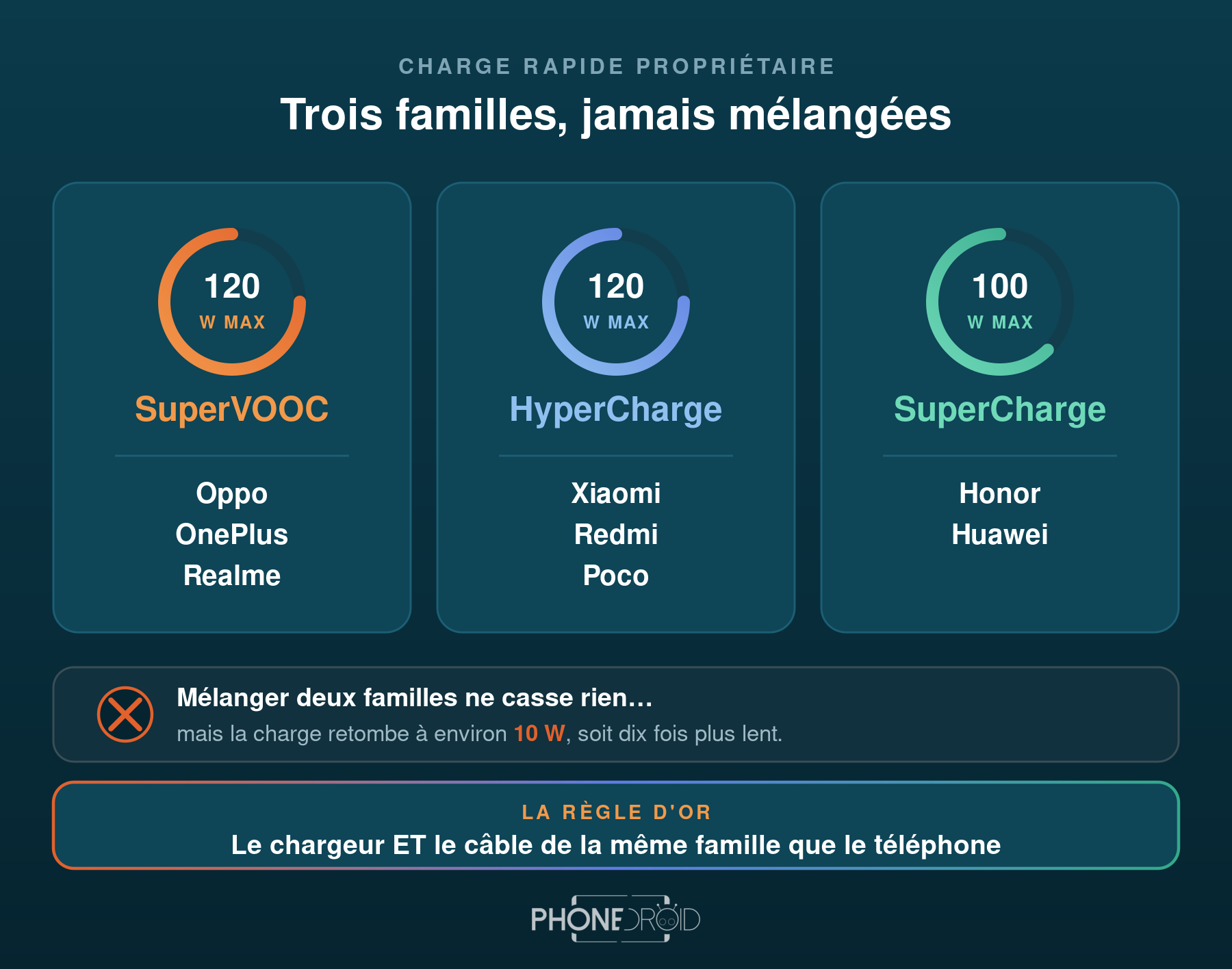
- Oppo / OnePlus / Realme (ColorOS / OxygenOS / realme UI): go to Settings > Battery > More settings. Temporarily turn off Optimised night charging if you need a quick top-up during the day. Above all, be aware that these brands use the proprietary SuperVOOC protocol: a standard USB-PD brick often caps power at 18W. To understand how this hardware technology works, read our analysis: why the SuperVOOC charger is essential.
- Honor (MagicOS): when you plug in the official SuperCharge brick, an animated bubble appears on screen. Press and hold the centre of the bubble to engage Turbo charging.
If you own a very powerful charger and hesitate to use it on a more modest device, see our practical guide too: using a 120W charger on an 80W phone: is it risky?
2. Force the display to 120 Hz
Most modern AMOLED panels run at 120 frames per second, giving exemplary scrolling smoothness. Out of the box, however, the default is often locked at 60 Hz or set to an “Automatic” mode that can be hesitant:
- HyperOS: Settings > Display & brightness > Refresh rate > choose Custom, then select 120 Hz.
- Vivo (OriginOS / Funtouch OS): Settings > Display & brightness > Screen refresh rate > select 120 Hz instead of Smart switch.
- ColorOS (Oppo / OnePlus / Realme): Settings > Display & brightness > Screen refresh rate > select High.
- MagicOS (Honor): Settings > Display & brightness > Screen refresh rate > select High.
3. Unlock background notifications (WhatsApp, mail, watches)
This is the number one complaint from new users: WhatsApp messages only arrive when you open the app, or a smartwatch keeps losing its sync. The cause? Aggressive system power management freezing processes while the phone sleeps.
For your three or four critical apps, apply the following:
- HyperOS: press and hold the app icon > App info > enable Autostart. Further down, under Battery saver, select No restrictions.
- Vivo (OriginOS / Funtouch OS): Settings > Battery > Background power consumption management > tap your app > select Allow high background power consumption. Also check under Settings > Apps > Autostart management that the app is ticked.
- ColorOS: Settings > Apps > App management > select the app > Battery usage > enable Allow background activity and Allow auto-launch.
- MagicOS: Settings > Apps > App launch > find the app, turn off automatic management and make sure Run in background is enabled in the pop-up.
4. Turn off system ads and tracking
Some manufacturers pre-enable commercial recommendation services inside their native menus. Turning them off cleans up the interface considerably:
- Xiaomi / Poco: go to Settings > Passwords & security > Authorisation & revocation and turn off the switch next to msa (MIUI System Ads). Then, under Settings > Privacy > Ad services, turn off personalised ads.
- Vivo (OriginOS): go to Settings > Security & privacy > More security settings > Ad services and disable the personalised advertising ID. In the launcher, you can also turn off “App suggestions” in the home screen customisation options.
- Oppo / Realme: under Settings > Security & privacy > More privacy settings > Advertising ID, enable Limit ad tracking.
- Honor: Settings > Privacy > Ads & privacy > turn off targeted ads.
5. Remove the lock screen image carousel
Nothing is more irritating than sponsored photos or tabloid stories appearing on your lock screen instead of your own wallpaper. These built-in modules — often called Glance or Lock screen magazine — waste both data and power:
- HyperOS: Settings > Always-on display & Lock screen > Wallpaper carousel (Glance) > turn the switch off.
- Vivo (OriginOS / Funtouch OS): Settings > Lock screen & wallpaper > Lock screen settings > Lock screen poster > turn off automatic online wallpaper rotation and recommended content.
- ColorOS: Settings > Home screen & lock screen > Lock screen magazine > untick the option.
- MagicOS: Settings > Home screen & wallpaper > Magazine unlock > turn off automatic updates over Wi-Fi and mobile data.
6. Enable Wi-Fi calling (VoWiFi) and 4G/5G HD calls (VoLTE)
This option routes your voice calls over your home or office Wi-Fi when mobile coverage is poor — remote buildings, basements. Audio clarity improves immediately and battery drain goes down:
- HyperOS: Settings > SIM cards & mobile networks > tap your carrier > enable Wi-Fi calling and 4G calling (VoLTE).
- Vivo (OriginOS / Funtouch OS): Settings > Network & internet > SIM card & mobile network > pick your SIM > tick Wi-Fi calling and check that 4G/5G HD calling is on.
- ColorOS: Settings > Mobile network > select your SIM > enable Wi-Fi calling and 4G calling.
- MagicOS: Settings > Mobile network > Mobile data > enable 4G HD calling and Wi-Fi calling.
7. Switch to full-screen gesture navigation
The three virtual keys — Back / Home / Recents — at the bottom of the panel permanently eat close to a centimetre of display. Modern Android gestures free up the entire screen:
- HyperOS: Settings > Home screen > System navigation > select Gestures.
- Vivo (OriginOS / Funtouch OS): Settings > System > System navigation > choose Gesture navigation. OriginOS also lets you hide the horizontal guide bar for a fully edge-to-edge look.
- ColorOS: Settings > Additional settings > System navigation > enable Gestures.
- MagicOS: Settings > System & updates > System navigation > select Gestures.
8. Calibrate the AMOLED panel’s colour accuracy
Out of the factory, most panels are set to a “Vivid” profile that artificially saturates colours and pushes whites towards a cold blue. For faithful tones — ideal for viewing photos or video:
- HyperOS: Settings > Display & brightness > Colour scheme > choose Original colour (PRO) or Standard.
- Vivo (OriginOS / Funtouch OS): Settings > Display & brightness > Screen colour > switch to Standard or Professional for faithful DCI-P3 coverage without oversaturation.
- ColorOS: Settings > Display & brightness > Screen colour mode > select Natural.
- MagicOS: Settings > Display & brightness > Colour mode & temperature > select Normal for realistic, warmer colours.
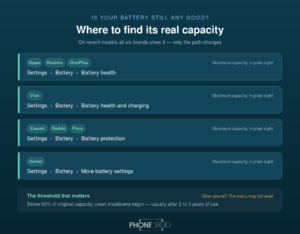
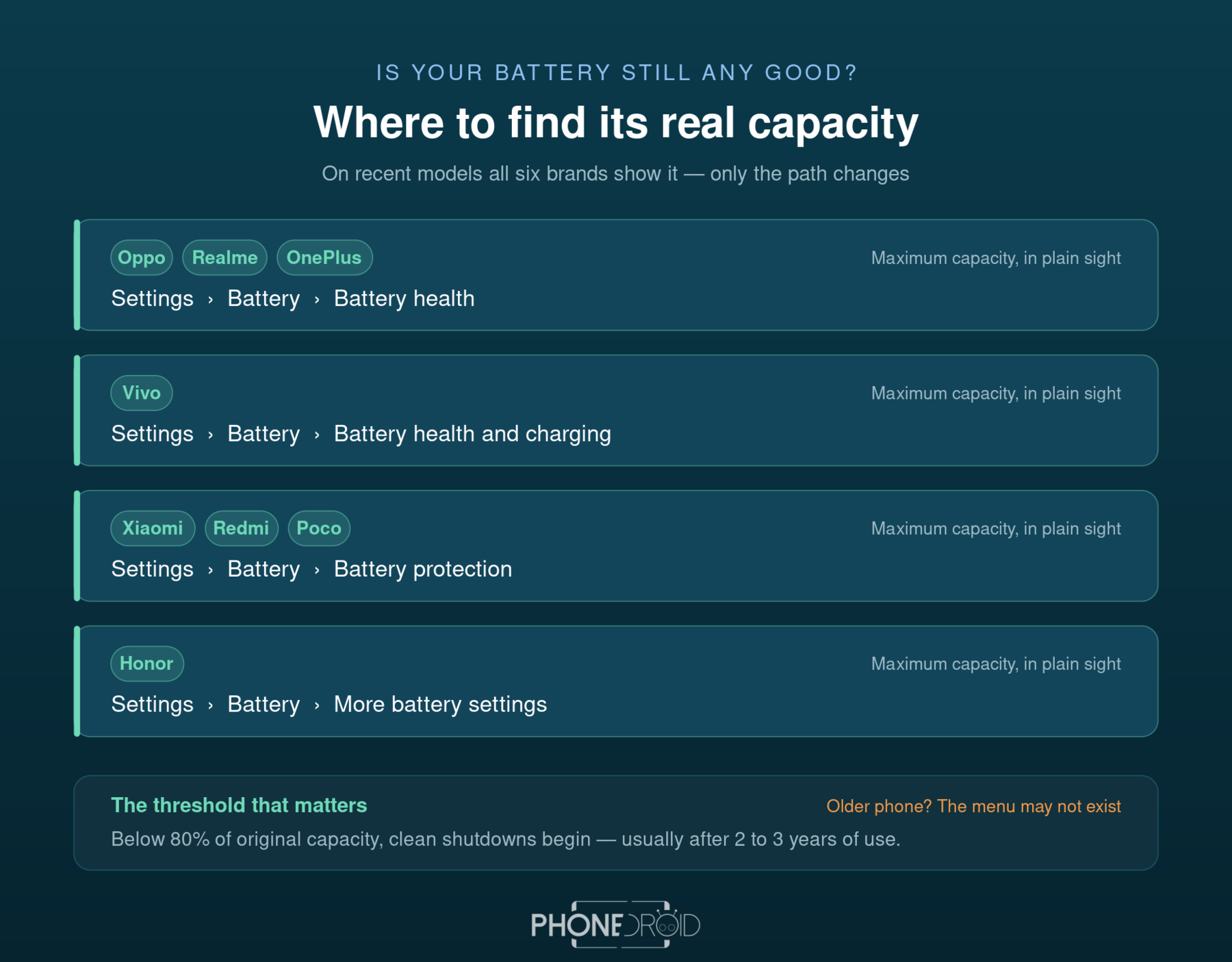
9. Protect battery health for the long run
To avoid premature wear on lithium-ion cells left on charge overnight, turn on smart charge limiting:
- HyperOS: under Settings > Battery > Battery protection, enable Optimised night charging.
- Vivo (OriginOS / Funtouch OS): go to Settings > Battery > Battery health and enable Smart charge protection, or the 80 % hold mode depending on your charging habits.
- ColorOS: under Settings > Battery > Battery health, either enable Optimised night charging or tick Stop charging at 80 % if you top up frequently during the day.
- MagicOS: Settings > Battery > More battery settings > enable Smart charging and Smart battery capacity.
10. Set up the app drawer
By default, some brands use an iOS-style layout where every new app lands straight on your home screens, creating visual clutter fast. To get a classic vertical drawer sorted alphabetically:
- HyperOS: Settings > Home screen > Home screen > select With App drawer.
- Vivo (OriginOS / Funtouch OS): Settings > Lock screen & wallpaper > Home screen settings > Home screen style > select Drawer style rather than the standard style where everything sits on the desktop.
- ColorOS: Settings > Home screen & lock screen > Home screen mode > choose Drawer mode.
- MagicOS: Settings > Home screen & wallpaper > Home screen style > select Drawer.
The right charger, or the setting achieves nothing
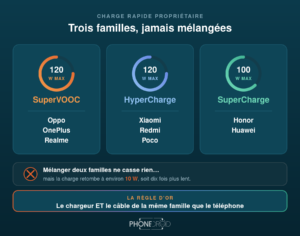
The first setting on this list assumes your mains adapter actually speaks your phone’s protocol. A generic charger will be recognised as plain USB-PD, and your device will settle for 18 W whatever you tick in the menus.
Oppo, OnePlus and Realme share the same SuperVOOC technology: a Realme or OnePlus charger will charge an Oppo at full speed. Honor uses SuperCharge; Xiaomi uses HyperCharge.
- Honor SuperCharge 100 W charger — covers the whole Honor range, from the 600 Lite to the Magic 8 Pro
- SuperVOOC 120 W charger and its OnePlus version — for Oppo, OnePlus and Realme
- SuperVOOC 80 W charger — for models that need no more
- Xiaomi 90 W charger with its cable
- SuperVOOC 12 A cable — an ordinary cord cancels fast charging, even with the right brick
Official Global Version · 2-year warranty · Free shipping from France · 24h delivery in Europe